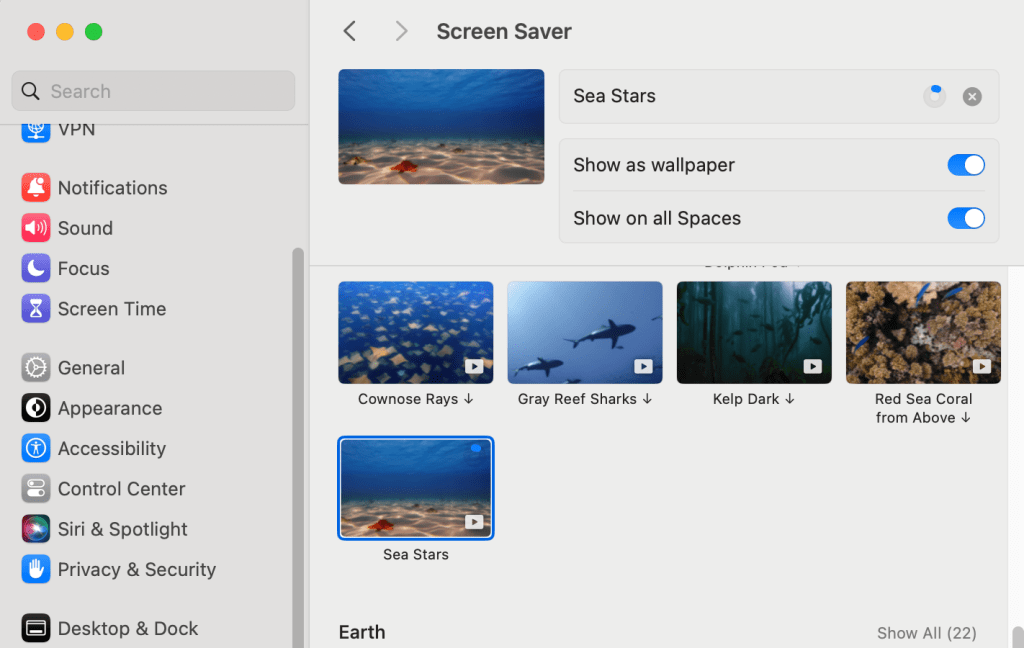
When selecting new dynamic screensavers on macOS, you may have experienced the case of the download either being excruciatingly slow or the actual termination of the download itself for no apparent reason. I’ve tried downloading from a VPN connection, public Internet, to my near 1Gbps Internet at work. Nothing seems to make it download faster. You may have noticed that if you start a download and click on another item, the download also terminates, and you’d have to start over again. It’s a pain in the ass. I’ve researched and discovered you can manually download the individual macOS wallpapers themselves from Apple’s servers itself and use them. Best part, no third-party applications required.
First, head over to this GitHub repo to download whichever screensaver you want. You’d notice that the domain/URL belongs to sylvan.apple.com….This lets you know that you are downloading directly from a source/subdomain controller by Apple themselves.
GitHub – zhongzachary/sonoma-screen-savers: All the aerial screen savers from macOS Sonoma
Now comes the slightly challenging part. It sucks, but you’d need to have successfully downloaded at least one screensaver. This is so you can copy the filename itself and rename the screensaver you’ve just downloaded manually. In my example, I’ve chosen Barracuda Battery. The screensaver you choose shouldn’t matter, however.
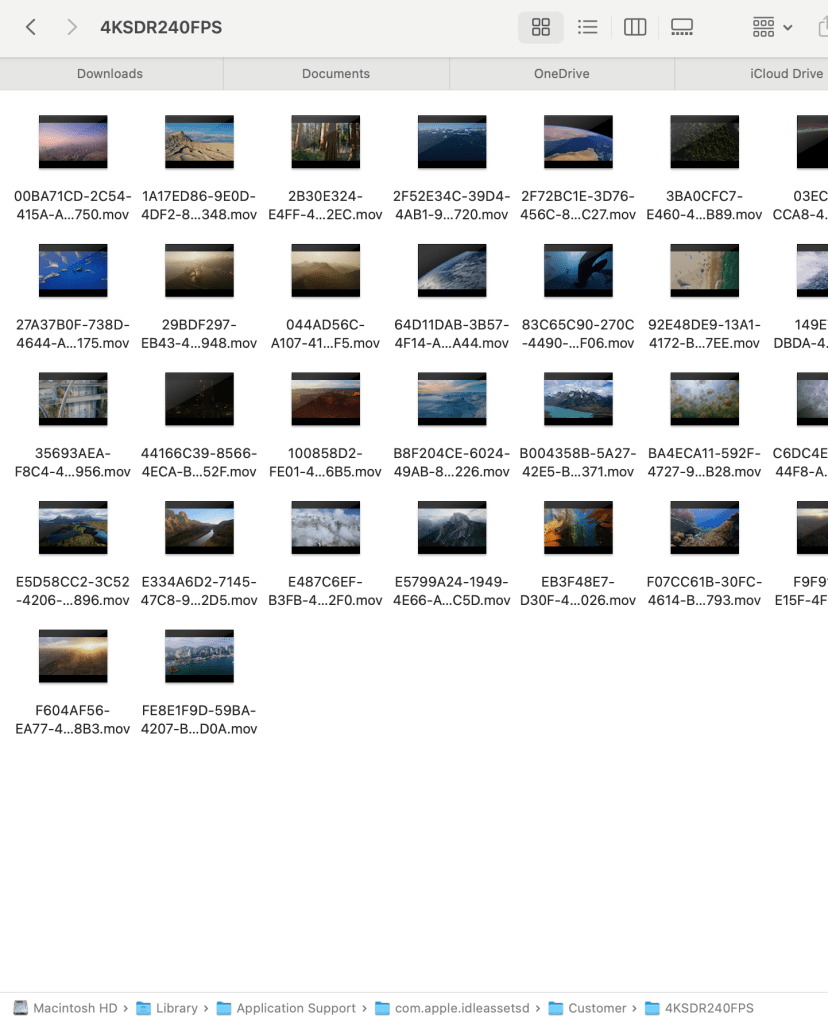
Now we need to find the screensaver file itself. In most cases, it would be here:
Macintosh HD > Library > Application Support > com.apple.idleassetsd > Customer > 4KSDR240FPS
In my example, Barracuda Battery is the third screensaver from the top row. You can tell that it’s not really the Barracuda screensaver because of the trees. It’s actually the one called ‘Sequoia Morning’, which is my currently selected screen saver for this week using the method highlighted here. Simply copy the filename and rename your downloaded screensaver to be that exact filename as well. As you can guess, you now simply copy and paste the downloaded screensaver to replace/overwrite the one in the 4KSDR240FPS folder.
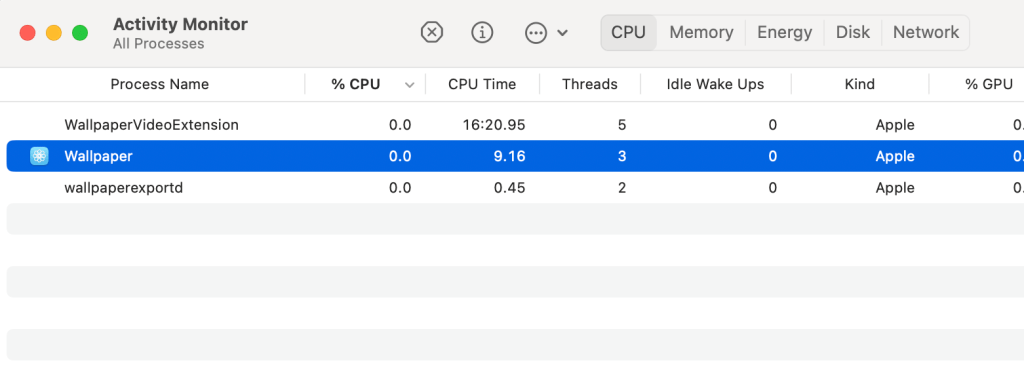
The final step is to Force Quit the ‘Wallpaper’ service within Activity Monitor. As soon as the service terminates, it will automatically restart itself. Your new screensaver should now take effect. You can test by pressing ctrl+command+q.
Unfortunately, this method only allows one screensaver to be shown. I’m not sure if it works in Shuffle mode. But at least now, I’m able to change my screensaver each week using this method without going through the screensaver app and waiting for a new one to download. As a bonus, you can use this method to create your own dynamic screen saver. Simply convert it to a .mov file, ensure that the clip is around five minutes or less along with a decent file size/resolution to get the best results based on my limited testing.





 The Mindless Catalog
Leave a comment